
Projects
Important
Private and multiple projects are available from the Professional plan and up. See the pricing page for details.
Simplifier organizes all content (e.g. resources and Implementation Guides) in projects. A project can be used to share all your FHIR resources and documentation with the community as well as to collaborate with other project members.
Open your project
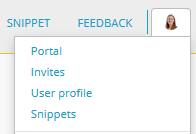
For an overview of your projects, go to your personal portal by clicking on your avatar in the top right corner.
The Projects tab lists all projects you are involved in, either because you created the project yourself (making you the owner of the project) or because you are invited to the project as a project member.
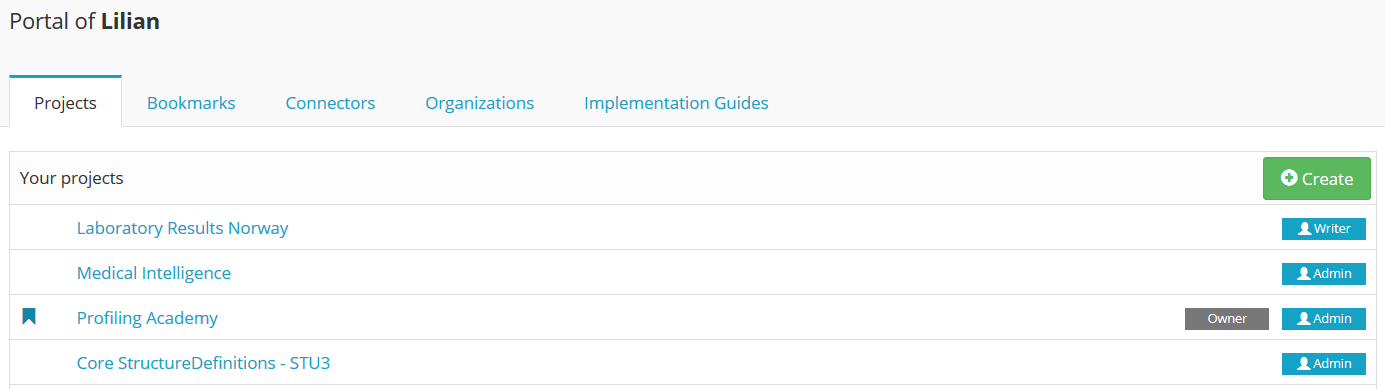
Click on the title of a project to open its project page.
Project page
Each project contains a couple of tabs depending on the settings of the project and your role in the project. The tabs described below are visible for each user in each Simplifier project.

Introduction
This section serves as an overview of your project. This is a good area to share information about your project with people who may be team members or viewing your project for the first time.
On the Introduction page of a project you can find:
A summary text as added by the project owners
A summary table describing the contents of the project:
Number of resources per resource type
Number of examples per resource
The canonical base URLs supported in the project
The workflow statuses supported in the project
When clicking on a resource type in the summary table (e.g. profiles) you navigate to the Resources tab, where the resources will be filtered on the selected resource type.
Resources
On the Resources tab you can find all the Conformance and Example Resources for the project.
This tab also offers a search and filter option. You can filter your results to include or exclude certain Resource categories, Core base types, Example Resources type, FHIR status, and Workflow status.
Guides
The Guides tab shows all Implementation Guides for this project built in Simplifier. Click on the Guide or hit the Browse button to go to the Implementation Guide. Use the IG-editor to create and edit Implementation Guides.
Team
On the Team tab you can find all project members and their role. This tab also offers a search option, allowing you to search for other members using their full name or username. Depending on your role in the project you can add project members here.
Log
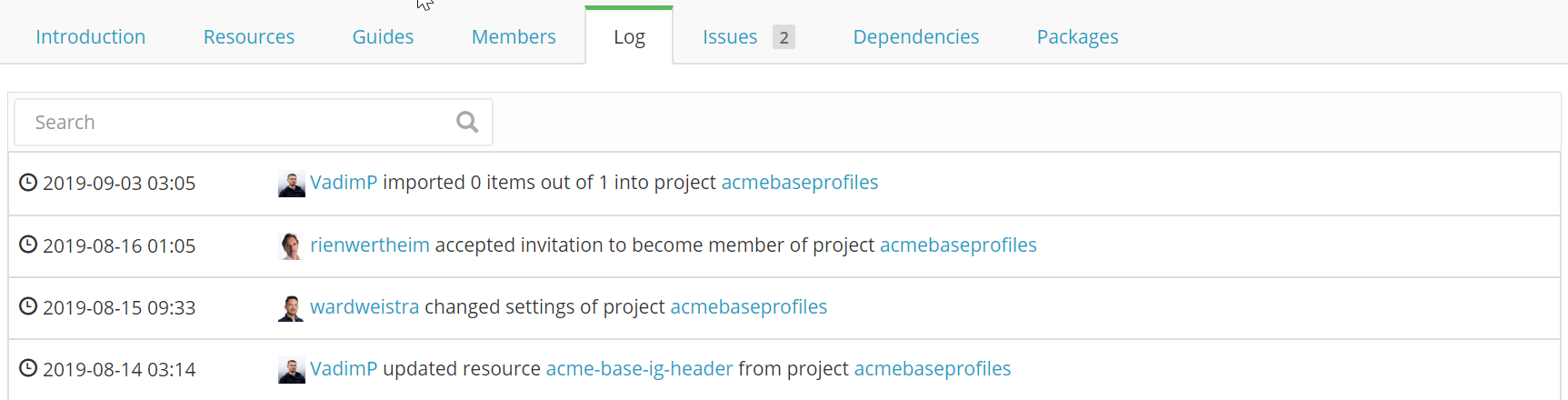
On the Log tab you can see all the changes that have been made to this project in the past. This is a good way to stay in touch with what’s happening within your favorite projects.
Issues
On the Issues tab you can leave your issues regarding the project. Note that this tab is not visible in all projects. The Issue Tracker is a paid functionality that allows project members to collect feedback from other project members or (depending on the project settings) other Simplifier users.
Dependencies
Currently references to other profiles are resolved by latest version. By adding package dependencies, references will be resolved in those packages. This gives you much better versioning control over the resources you include.
Releases
The Releases tab shows all released FHIR package versions of a project.
Subscriptions
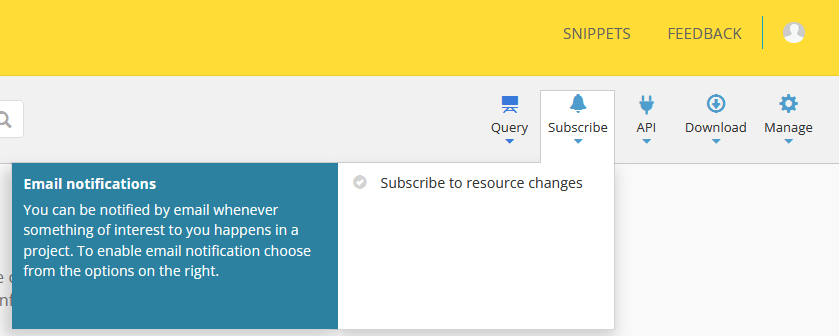
To stay informed in real time click the Subscribe button in the top right. You do not have to be a member of a project to stay up to date on the latest developments.
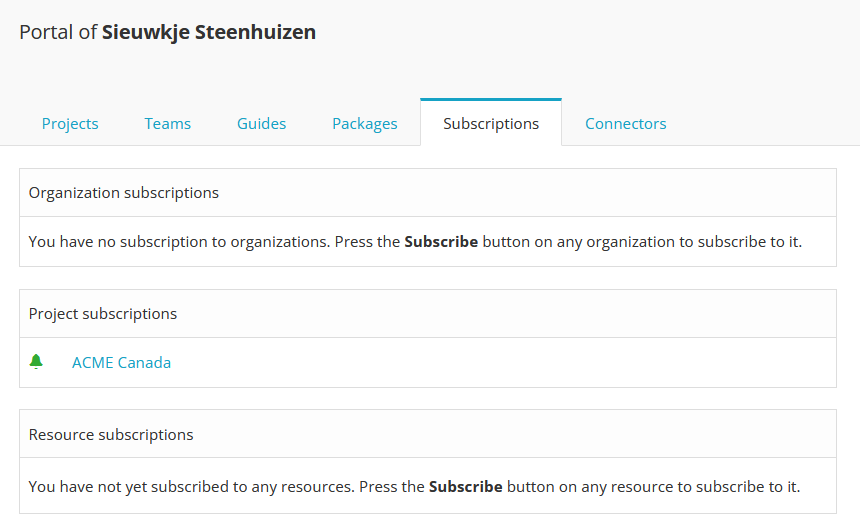
You can find your current subscriptions in your user portal under the Subscriptions tab:
Create a project
In the Projects tab on your Portal page you can find the button labeled Create.
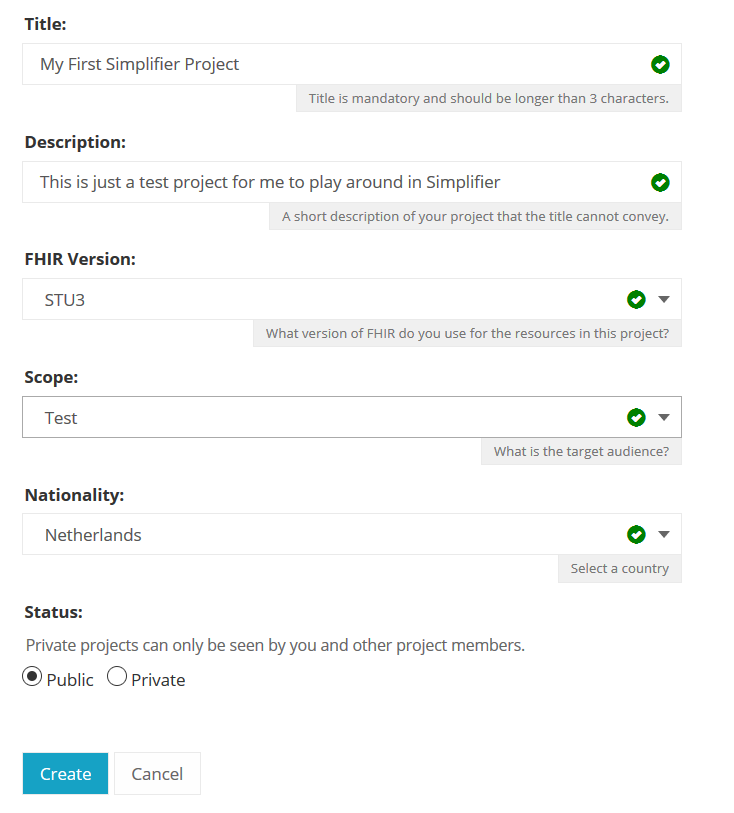
Clicking this button will allow you to create a new project by entering a Display Name, Description, and Scope. Once the project has been created you can then customize project information, add resources, add members, and follow changes that are occurring in that project.
Project Management
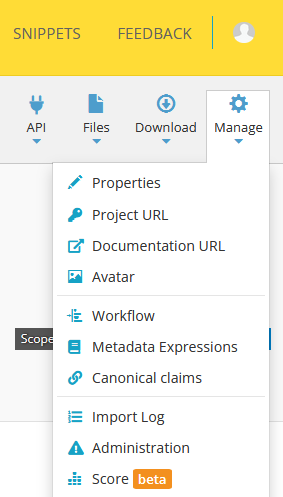
You can always change your project settings by clicking on the Manage button in the right upper corner. There are a couple of options in the Manage menu, which will be explained below.
Properties
Here you can edit the following properties:
The title and subtitle of your project
The FHIR version (DSTU2 or STU3)
The scope of your project (core, international, national, institute, regional or test). As choosing the right scope will make it easier for others to find your project, please use test for all test projects and test projects only.
- Issue tracking by project members and other Simplifier users:
Turn issues on or off for this project (when activated the issues tab will be visible on the project page depending on the user’s role)
With the issues visibility setting you can choose whether issues are visible to all Simplifier users or project members only.
With the community issues setting you can choose whether all Simplifier users or only project members can create or respond to issues.
Publishing project resources to the FHIR registry (registry.fhir.org). Note that this setting is only available in public projects. Private projects and test projects are excluded from the registry.
Project url
Here you can edit the URL key to your project on Simplifier, which is by default the name of your project. Be careful editing the URL key at a later stage as it will break all existing links to your project.
Documentation url
If you have any external documentation on your project, you can add the link here.
Avatar
Choose this option to add your company logo or just any cool picture you like!
Workflow
Here you can select one of the custom workflows of your organization to use it in your project. The workflows are configured and mapped to the FHIR workflow at the organizational level.
Metadata Expressions
Here you can define how to extract metadata, like title, URL key, filename/path from a resource using FHIRPath. For more information also take a look at Metadata Expressions.
Canonical claims
Project owners can customize their base canonical URLs to brand their projects. Canonical claims are used and recognized as a certificate, or proof of origin, for your resources: a resource’s canonical URL is only valid if it matches a canonical base claimed by the project. You can claim canonicals on a project, package, and resource level.
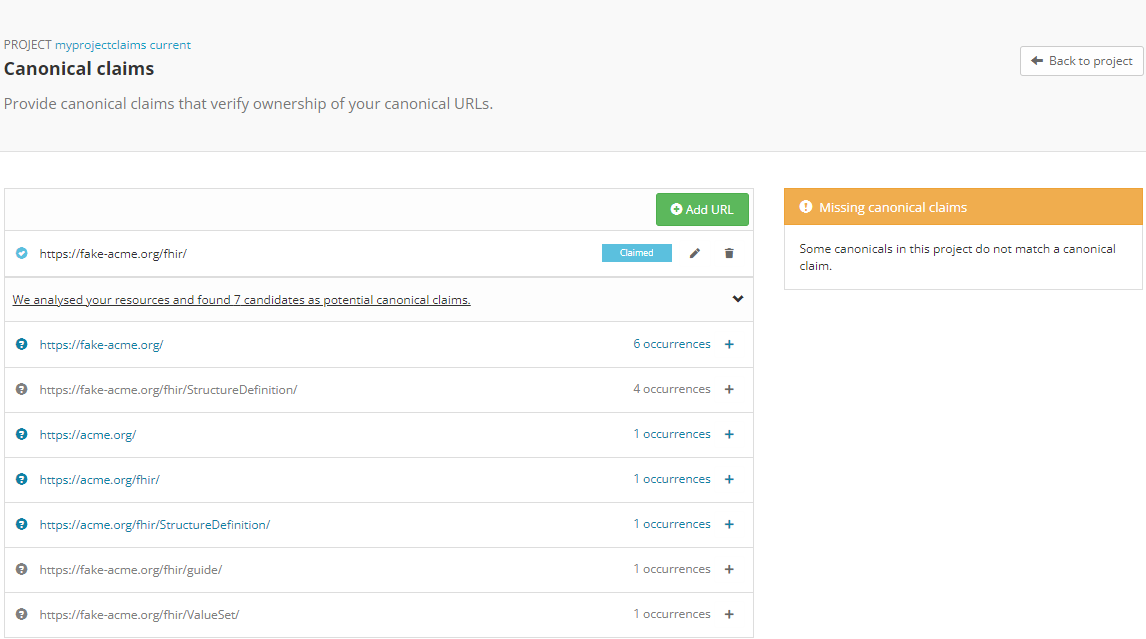
On project level: claim a canonical under the Canonical claims option in the project Manage dropdown. The Canonical claims page shows the claimed canonicals and the status of each claim.
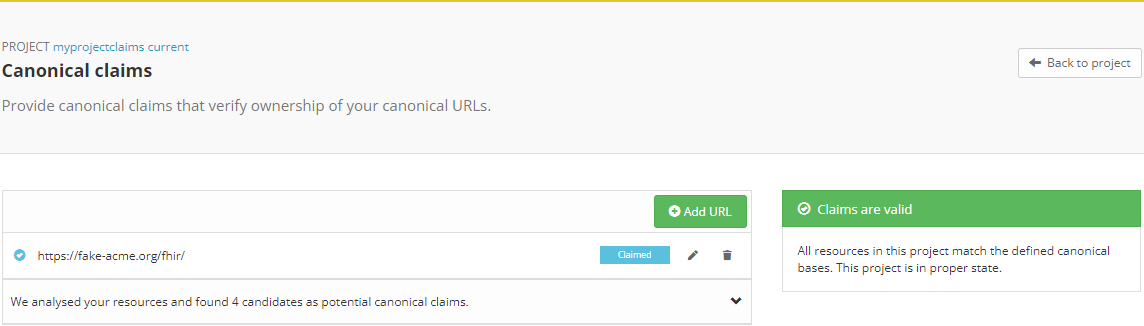
Claiming a canonical declares ownership of it. If another user disputes your claim and has the legitimate claim, a site admin can set your claim as invalid. Reach out to us if you want to open a dispute about invalid canonical claims.
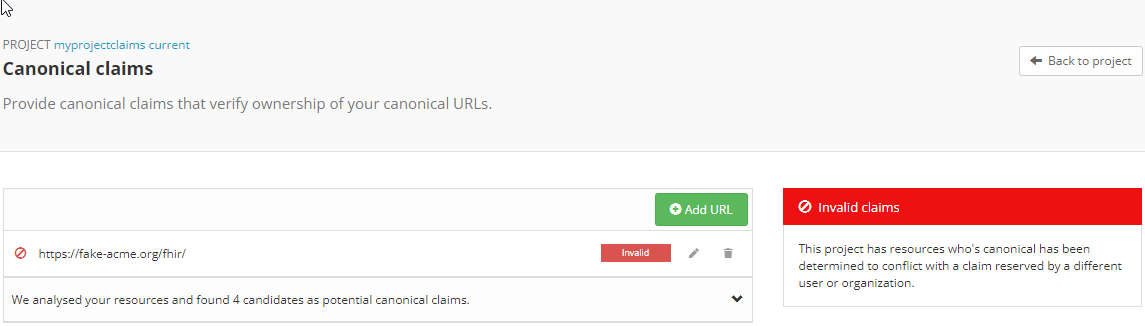
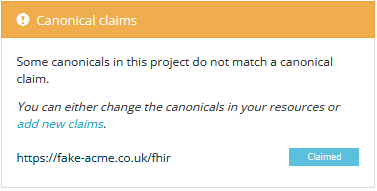
If your project contains resources with a canonical base that is not claimed, Simplifier shows a warning on the Project page, and the Canonical claims option shows which claims you are missing. This could also indicate that some resources have an unintended canonical (base) URL. You can create custom bulk validation rules to validate your entire project using our Quality Control feature.
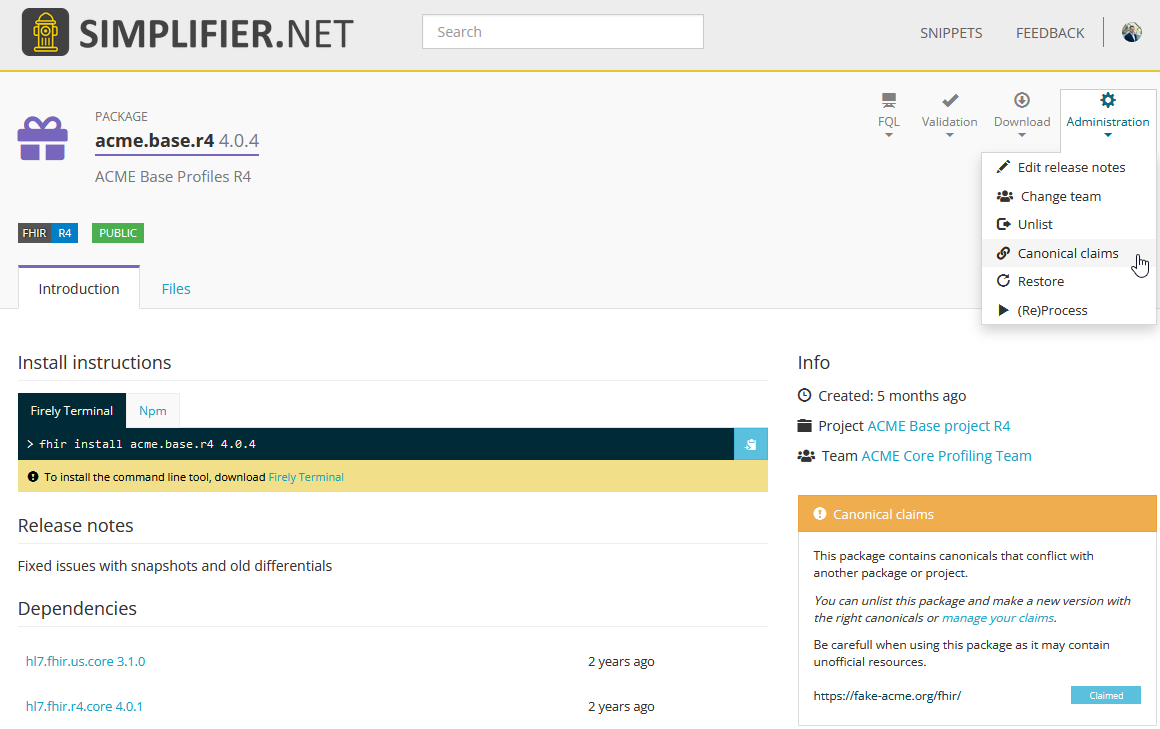
In packages: after a package is created, its canonicals can be managed under the package Administration. The claim statuses are the same as on the project level.
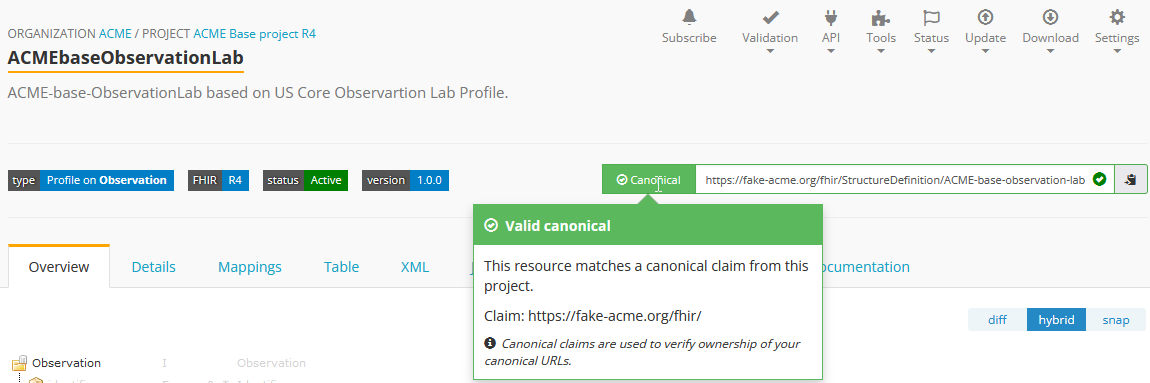
On a resource level: every resource shows a status next to its canonical URL indicating whether the base was claimed by the project. The status can be valid, a warning that the base was not claimed, or an error stating the canonical is invalid (for example, when it is already claimed by another organization or user).
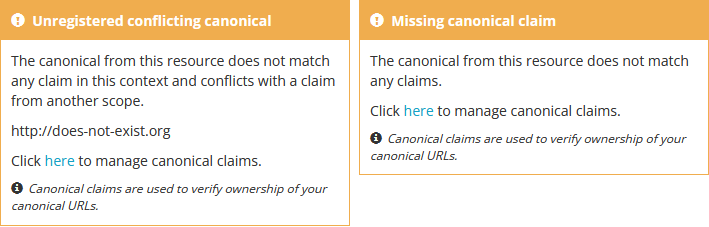
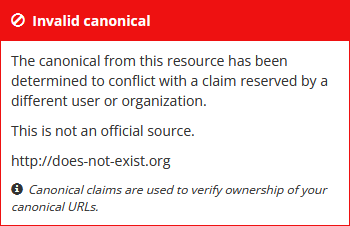
Best practice: when adding canonical claims, we recommend using the longest common denominator. For resources generated from the IG editor, the default canonical base is https://simplifier.net/guide; everyone is allowed to claim this canonical in their projects and packages.
Import log
Use this option to retrieve a log with all uploads to your project.
Administration
This option is only available for project members with an admin role. Use this option if you want to delete your project or if you want to change its visibility to either public or private. Team Management “”””””””””””””” .. important:
Working with multiple users on a project is available from the Team plan and up. `See the pricing page for details. <https://simplifier.net/pricing>`_
The Teams tab displays a list of all the members with rights to that project. In this section you can invite Simplifier and non-Simplifier members to your project by clicking the Invite User button and typing in an email address. For more information on Team Management please look at our Team Management page.
Along the top of the Teams tab you will find a summary of User information for your project. The number of users, the max users allowed for this project (in accordance with the type of plan you have), and the number of invitations you have pending (the number of users who have not yet accepted an invitation).

Track Project Changes
On the Log tab you will find event tracking of a project. This log keeps a list of all changes made to resources within the project, along with the name of the person that made changes and the time the changes were made.
At the top of the screen you will find the Atom feed button. This allows you to subscribe to stay informed about any changes being made within your projects. To utilize this feature, navigate to a project on Simplifier.net that you are interested in following. Once there click on the Subscribe button in the upper right hand corner and copy the link into a feed reader of your choice. You are then ready to start receiving updates.
Issue Tracker
Important
Issue tracking is available from the Team plan and up; collecting public feedback comes with the Enterprise plan. See the pricing page for details.
Would you like to capture feedback about your resources from users? The Issue tracker option is a great way to do this. If you go to the Settings dropdown menu and then select Properties. You will see the option to Enable Issues at the bottom of your screen. By selecting the On option, you enable the issue tracking feature of your project.
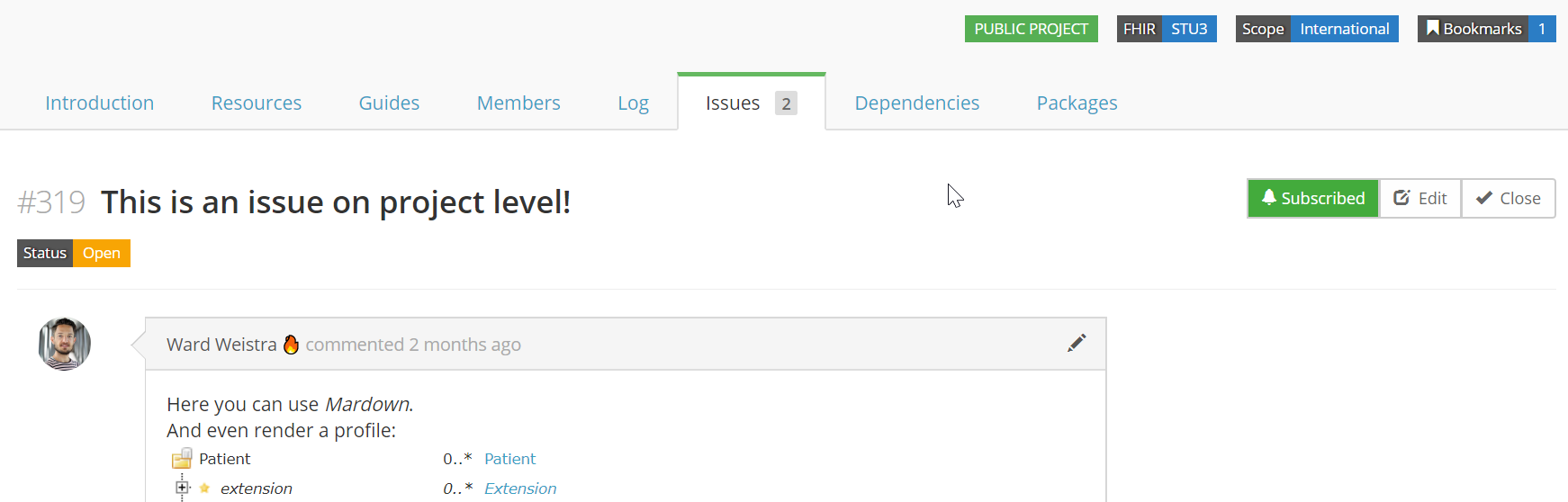
There are two additional options that display once you have turned Issue tracking on. You have the option to limit Issue visibility to project members only or make them publicly visible. The issues that are reported by the community can also be limited to be visible to your project members only or visible to the public.
These issues can either be reported at resource level or at project level. At the project level you will see issues that are project specific and issues from all resources in that project on the Issues tab.
You will automatically be subscribed to issues you have reported or commented on, but you can also subscribe or unsubscribe to updates on them by clicking their bell icon. If you want to be informed on new issues reported on a project, click the Subscribe button on the project level and Subscribe to new issues there.