Resources
Simplifier is a repository for FHIR resources. There are a multitude of resources that are available to the public including profiles, extensions, valuesets, dictionaries, mappings, examples and more.
Resource page
You can visit the page of a resource by selecting the resource from your search results or the Resources tab in your project, or following the direct link to the resource. While viewing resources you can display information in a few different ways.
Depending on the type of resource, the different views include:
Overview – This is either a preview (e.g. texts) or a Logical view (e.g. profiles) of the resource. The Logical view of a profile includes Element names in the leftmost column followed by Flags, Cardinality, Type, and Description & Constraints.
Details – This is an easy-to-read list per element of all the details of a profile. The specification refers to this as the dictionary.
Mappings - This is a list of all the mappings specified in a profile.
Table – This is a simple table view of the resource.
XML & JSON – Respective views of resources in either XML or JSON formatting.
Related - The references to the profiles from which this profile was derived.
History – On this tab you can view the difference between two versions of the same profile. This is a great feature for comparing and tracking changes.
Issues - On this tab users with a paid account can track issues. New issues can be created by clicking the
New issuebutton. The issue list can be filtered on open, closed or your own issues. By clicking on an issue you can read the entire conversation and add a new comment.Documentation - Here you can provide extra documentation on your resource.
Update Resources
When you want to update your resource, there are several ways to do so. Choose one of the following options from the Update menu at the top of the Resource page:
Upload: Update by uploading a file (either XML or JSON)
Fetch: Update by fetching from a different FHIR server (provide a GET request to the server where your resource is located)
Edit: Update by editing the last version (opens a XML-editor in a small window where you can directly edit the XML code of your resource)
Editor: Update by editing the last version (opens a stand-alone full screen XML-editor in a different tab where you can directly edit the XML code of your resource)
Download Resources
You may also choose to download the resource and save a local copy on your computer. You can either choose to download the resource as a XML or JSON file or directly copy the XML or JSON code of the resource to your clipboard, so you can easily copy-paste it to another location.
Add Resources
Go to your Project page to add new resources to your project.
Sharing resources with Snippet
The Snippet feature in Simplifier enables you to quickly share resources with another Simplifier user (e.g. for review purposes) without storing them in your project. Click on the Snippet button in the top right corner to use this feature.
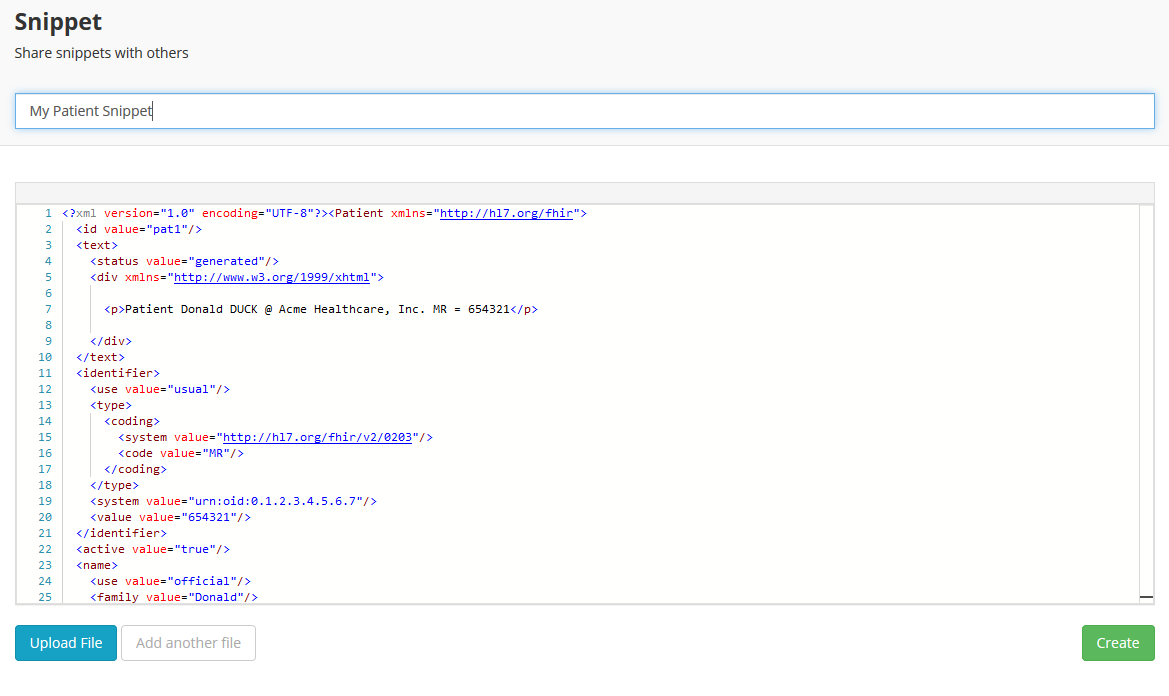
Start by giving your Snippet a title, e.g. MyPatient. You can either upload a file or copy-paste your XML code in the editor. Select Add another file to upload more than one resource within the same Snippet. When you are finished uploading and editing your resources, click on the Create button on the right.
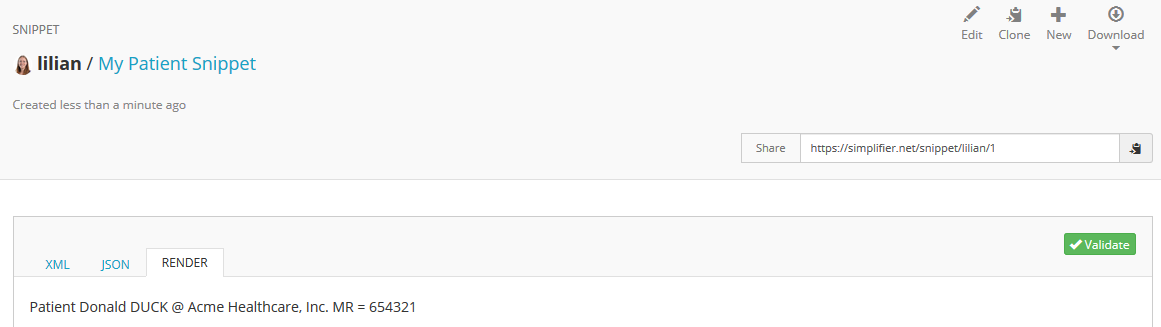
Your Snippet will now be available on Simplifier. The URL is displayed at the top right of the Snippet. You can quickly copy the URL to your clipboard by clicking on the Copy icon at the right.

When visiting the URL of a Snippet, you can choose to view either the XML code, JSON code or the rendered resource by selecting one of the available tabs. In the top right menu you can either select Edit to edit the resource, Clone to copy it in a new Snippet, New to create a new Snippet or Download to download the resource as a XML or JSON file. You can also validate the resource by using the green Validate button at the right.
Personal Snippets
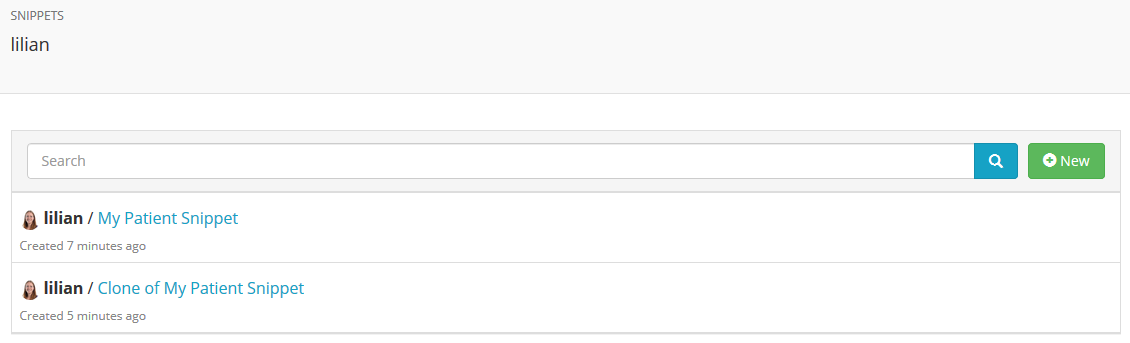
Through your personal menu (click on your avatar at the top right and select Snippets) you can access a list of all your Snippets. From here you can also quickly add a new Snippet by clicking the green +New button.